Introduction
Our platform allows you to add customized questions and incorporate them into your assessments. This guide walks you through creating and managing custom coding questions step-by-step.
Getting Started
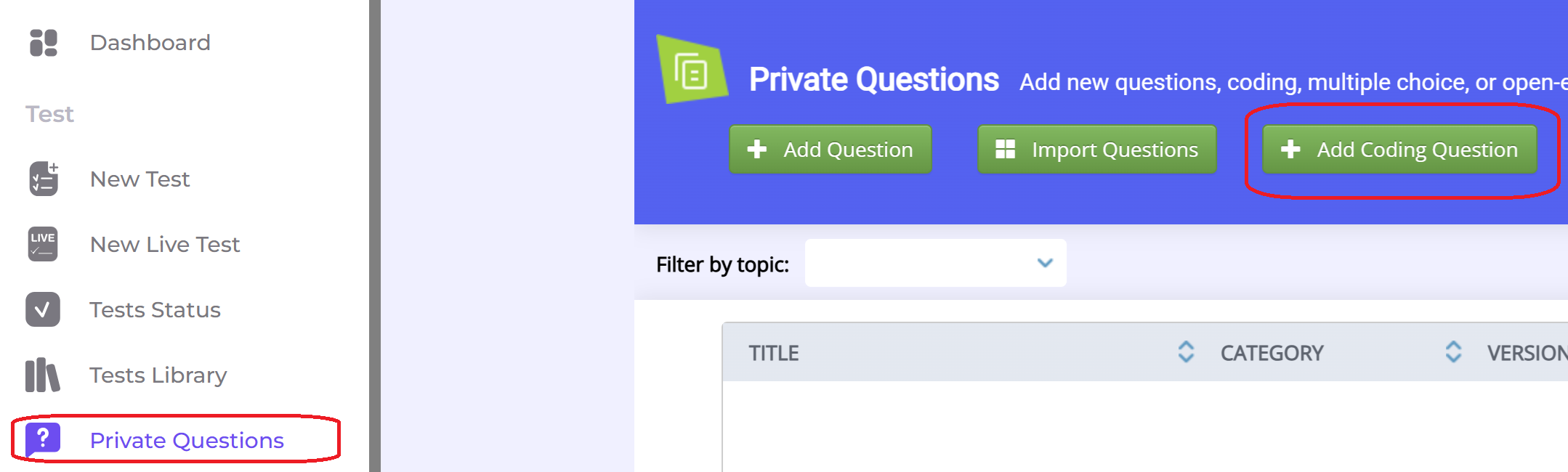
To begin, navigate to the Private Questions tab and click the Add Coding Question button. This action will take you to the question creation page.
Adding Coding Questions - Advanced
In this option, you can manually provide the code components for the question:
- The function(s) to be implemented by the candidate.
- The checker function, which validates the candidate's code.
- Additional helper classes (optional) that candidates can use in their solution.
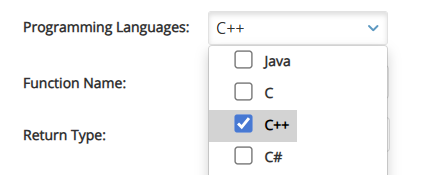
For this tutorial, we will demonstrate how to add a C++ coding question that simulates a calculator’s add function.
Step 1: Select the topic name

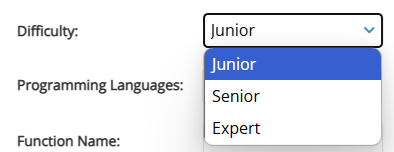
Step 2: Select Question Difficulty
Start by choosing the appropriate difficulty level for the question.
Step 3: Select the programming language
Step 4: Press on advanced
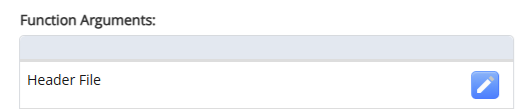
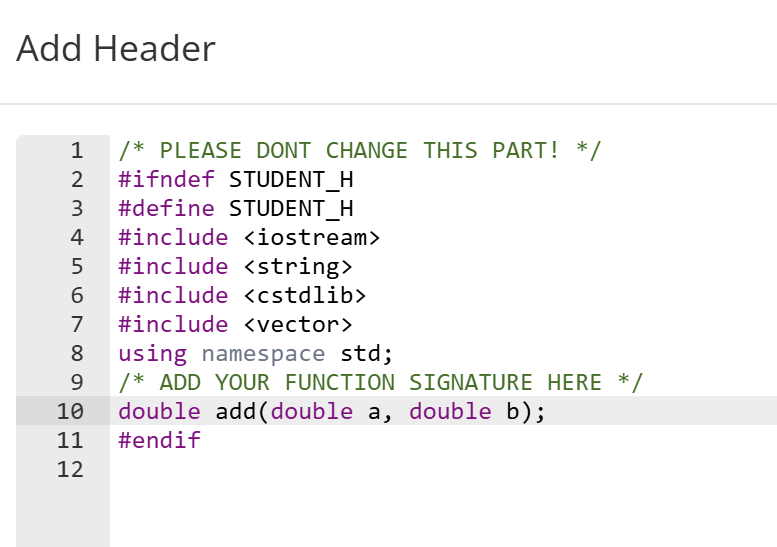
Step 5: Fill the header file
The header file contains the function signature for the coding task.
This is the method declaration that defines what the candidate must implement in the source file.
Example:
Once done, press Save.
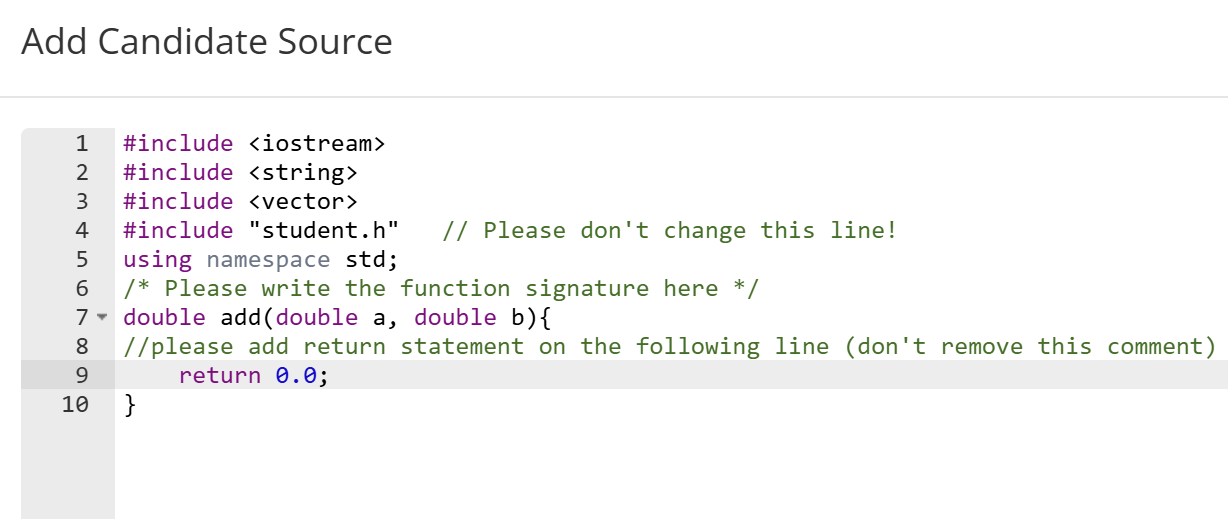
Step 6: Fill the candidate source file
The candidate source file contains the code template that the candidate will receive and complete.
Include a temporary return statement inside the function.
This return value is required only for initial compilation checks during setup.
The system will automatically remove this placeholder return before the candidate sees the final template.

Once done, press Save.
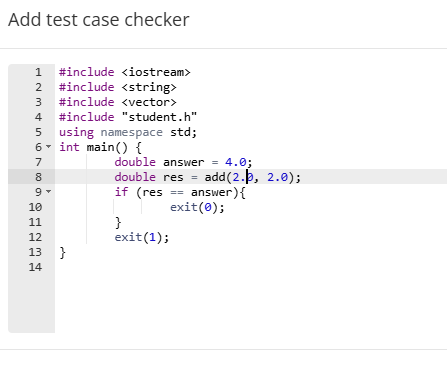
Step 7: Add test case checkers

The test case checker is the component responsible for verifying whether the candidate’s solution works correctly.
It calls the candidate's function with input values, evaluates the returned result, and determines whether the behavior is correct.
If the candidate’s code passes validation, the checker returns an exit code of 0.
If the result is incorrect or an error occurs, it returns exit code 1.
For example:
You can have multiple test checkers.
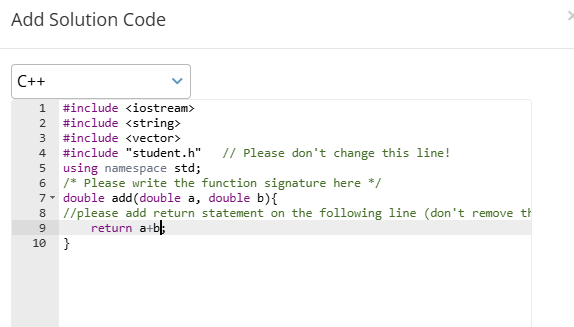
Step 8: (Optional): Add Solution Code
To include a reference solution, click the Add Solution Code button and provide the solution code.
- The platform will validate the solution code against the test cases you provided.
- If the solution does not pass all test cases, you'll receive a warning to help you debug the issue.
You can provide a solution code to verify that your question is working well.

Example:
By pressing Save, the service will verify that the code is working well.
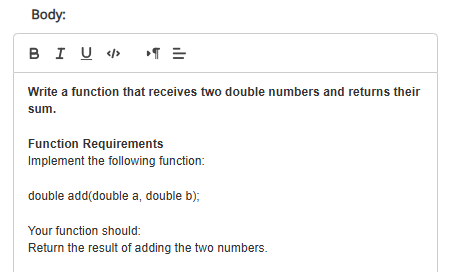
Step 9: Fill in the question's body
Step 10: Save the Question
- Once you've completed the steps above, press the Save button to finalize and add the coding question to your assessment library.
Was this article helpful?
That’s Great!
Thank you for your feedback
Sorry! We couldn't be helpful
Thank you for your feedback
Feedback sent
We appreciate your effort and will try to fix the article